
KM Daily Dashboard Updating SOP
Procedure#:HB SOP 45
Function:Management Policies
Implementation Date:040123
Policy/Purpose: To ensure all information inputted into the KM Daily dashboard is accurate for payroll, deposits, and reporting purposes.
Procedures:
- Food Sales
- Log into Toast
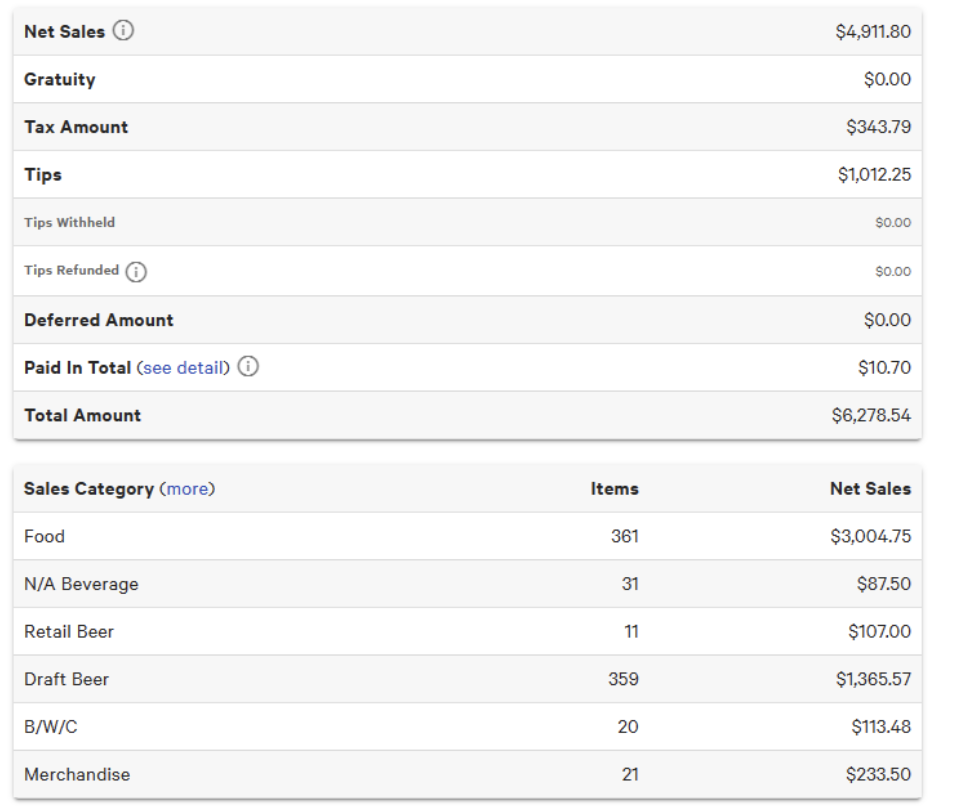
- On the Home Page, select ‘Sales Summary’
- Select the appropriate date, click ‘update’ and ‘load report’
- Look for Food Net Sales on the left hand side of the screen
- Log into Toast
- W/E Invenotory
- This number should be taken from your US Foods Inventory number every Wednesday for the previous Wednesday-Tuesday work week.
- Labor
- 7 Shifts Total Labor
- Under 7 Shifts, go to the ‘Reports’ Tab
- Select Worked Hours and Wages (Time cards have to be approved if not already done otherwise the data is inaccurate)
- Select the proper date range, location, and department (___ Kitchen); ensure the layout is detailed
- 7 Shifts Total Labor is a the bottom right of the report
- Normal Hourly Labor
- Run the same report as before, but run it for each position you have select the ‘Role’(Service Leader, Cook, Dishwasher); record the number
- Normal Training Labor
- Run the same reports as above, except under ‘Role’ select ‘Training’
- 7 Shifts Total Labor
- Invoice Details
- For each invoice you receive (Mostly all US Foods) you should record the vendor name and the following
- Invoice Number- so we can match up totals
- Invoice Total
- Invoice category, whether it is Janitorial, Disposables, Equipment & Supplies, Beverages or Brewery
- For any ‘transfers in’ you should list the invoice name as ‘Transfer’ and add a positive amount to that category for that day.
- For any ‘transfers out’, you should list the invoice name as ‘Transfer’ and add a negative amount to that category for the day.
- For each invoice you receive (Mostly all US Foods) you should record the vendor name and the following
- Discounts to Food Sales
- Log back into Toast, and go to the Sales Summary
- Choose the week that you are looking to run numbers for and ‘load report’
- Record numbers for the following comps- these credit back your food cost
- 50% employee discount
- BOH Food Comp
- Intern Comp
- Customer Recovery
- Management Food
- Owner Food
- Training Food Comp
- Review Numbers
- Once all the gray cells are inputted you will be able to see your weekly food and labor costs, which you can review.

Leave a Reply
Want to join the discussion?Feel free to contribute!