
Creating New POS Buttons SOP
Policy/Purpose: To ensure that any button entered into the POS is entered correctly, and can be tracked separately from other menu items, including past menu items. This accuracy is vital for maintaining a smooth workflow and providing detailed reporting on sales data. Additionally, it is essential for the mgn party setup process to have clear guidelines on button entry to avoid confusion during high-traffic events. By standardizing the input methods, we can streamline operations and enhance customer satisfaction.
Procedures:
-
- Log into Toast and on the left hand side, select Menus
- From there click on the Edit Menus, under Menu Management on the right hand side of the screen
- Only the Operations Manager, COO, or Ownership should add menu categories
- For any item you are looking to add, please click on the category (Beer, Food, N/A Beverages, SWAG, Wednesday Special, etc…)
- Once you select the category, look for the subcategory you want to add to (12 oz Beer, 5oz beer, Crowlers, Sandwiches, Small Bites, Etc..
- Once the subcategory is selected, go to Items and look for ”+ Add”
- NEVER click on an item and change the name
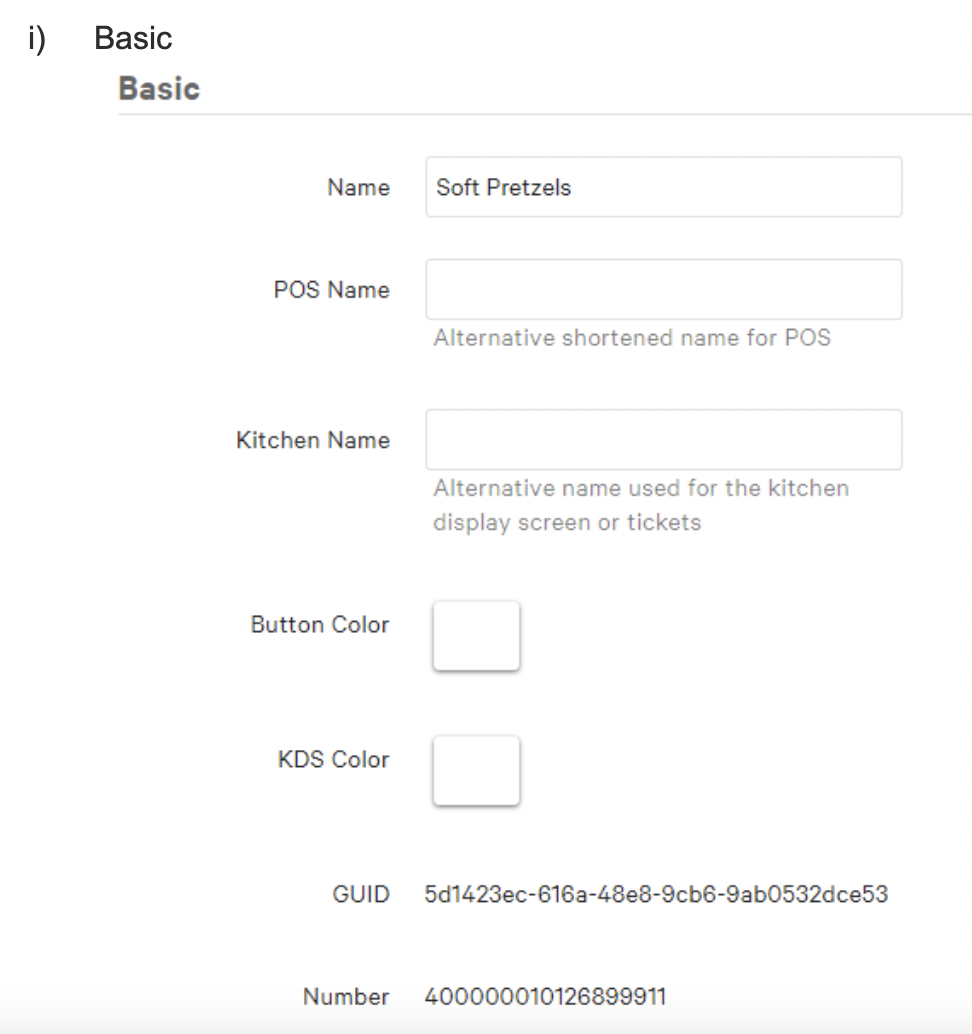
- After clicking add, enter the name of the Item you wish to add
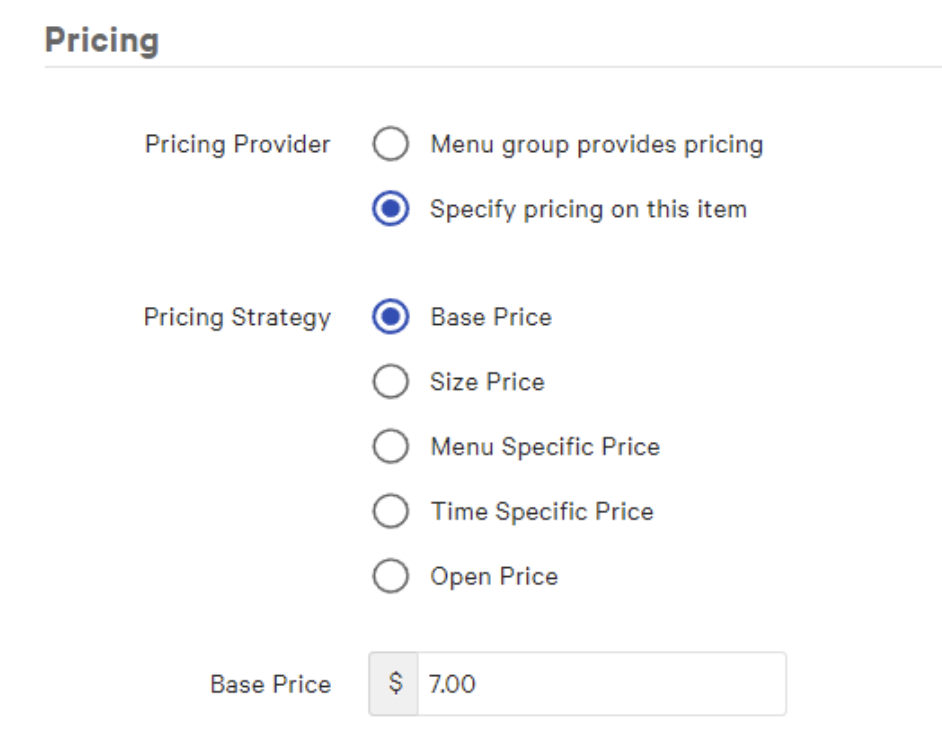
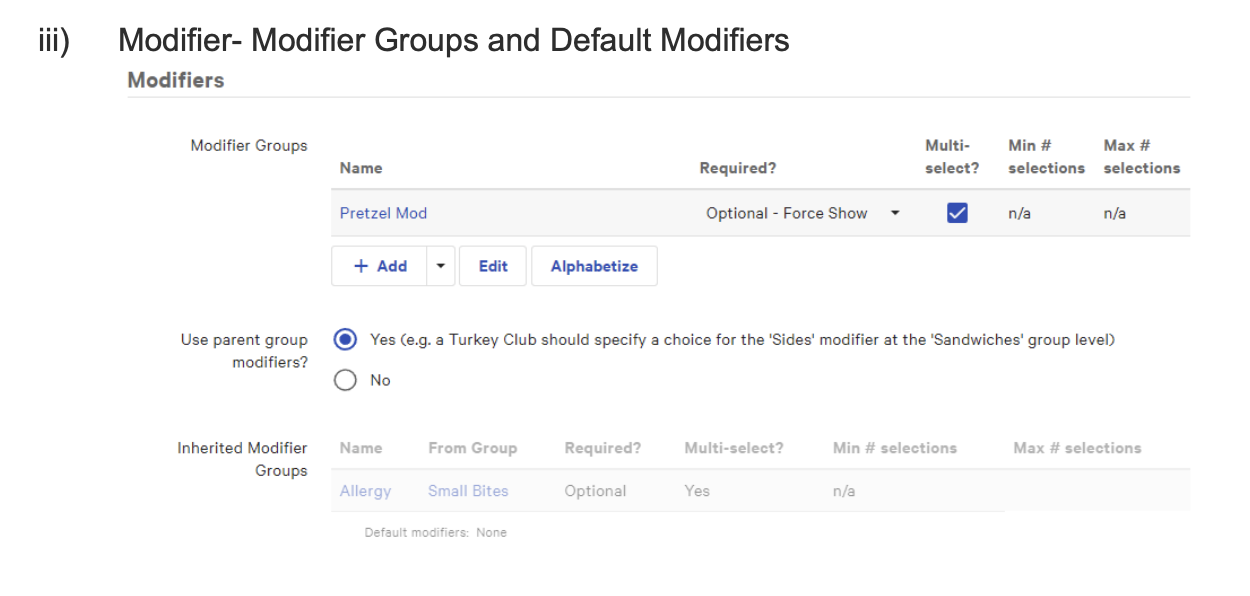
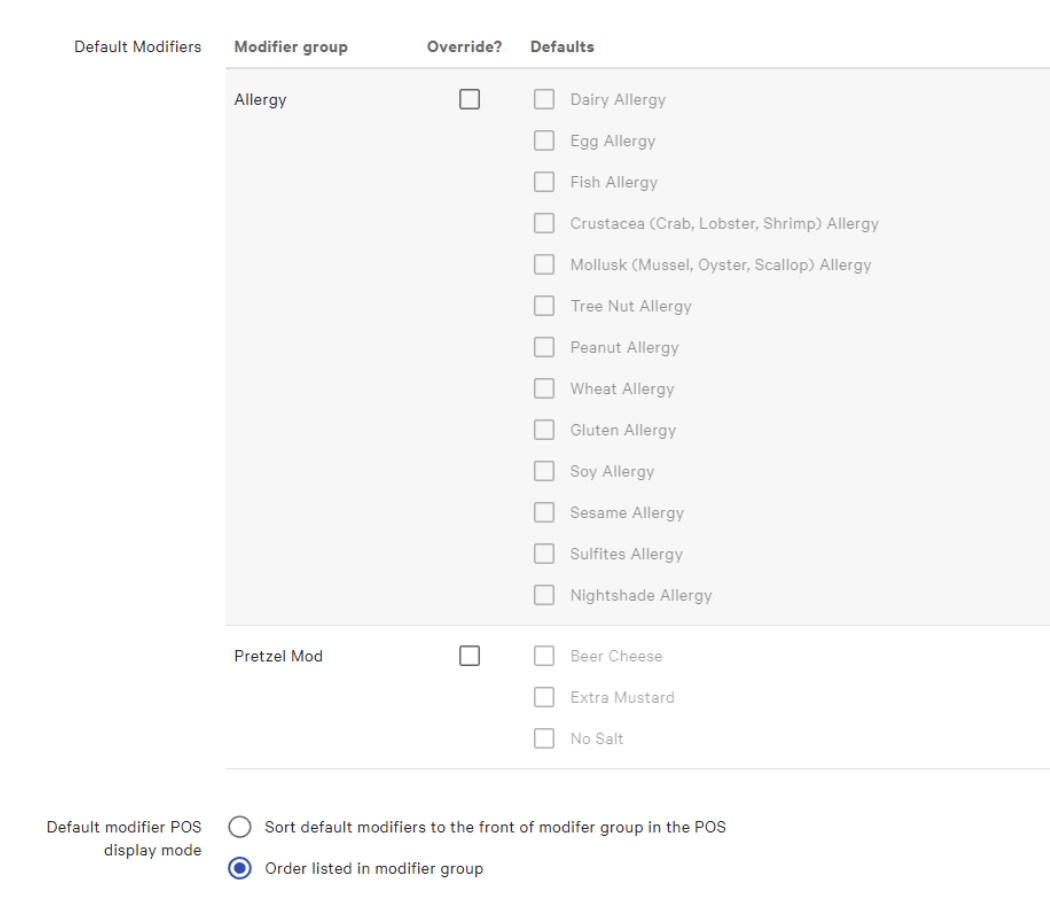
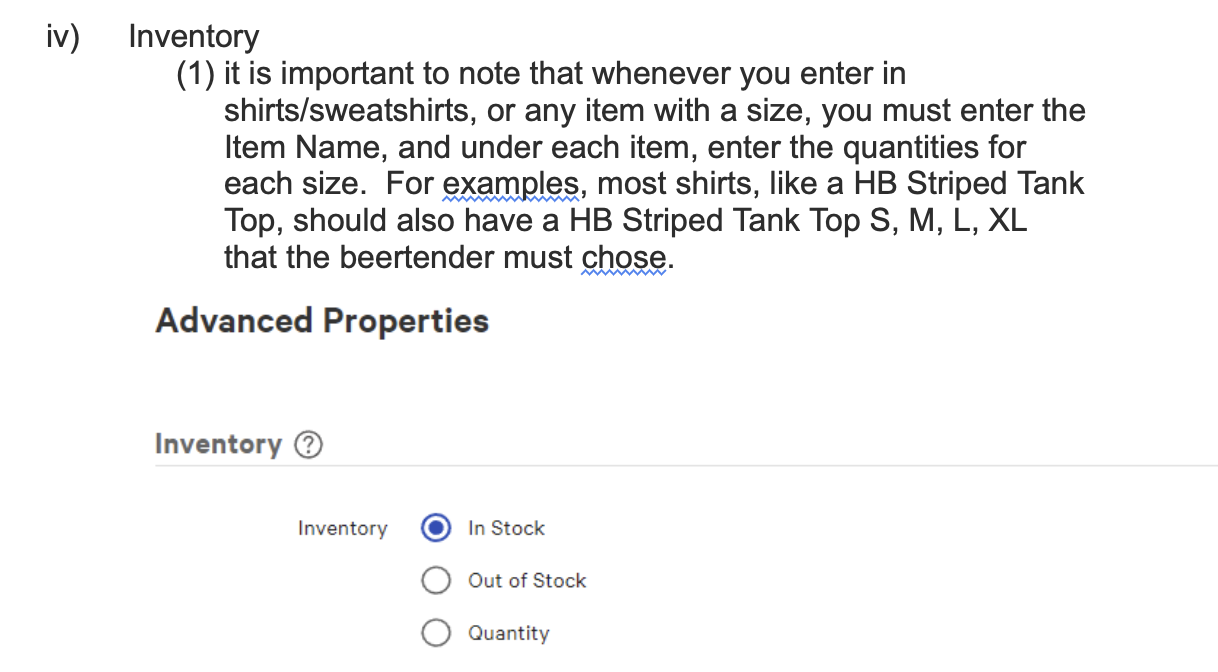
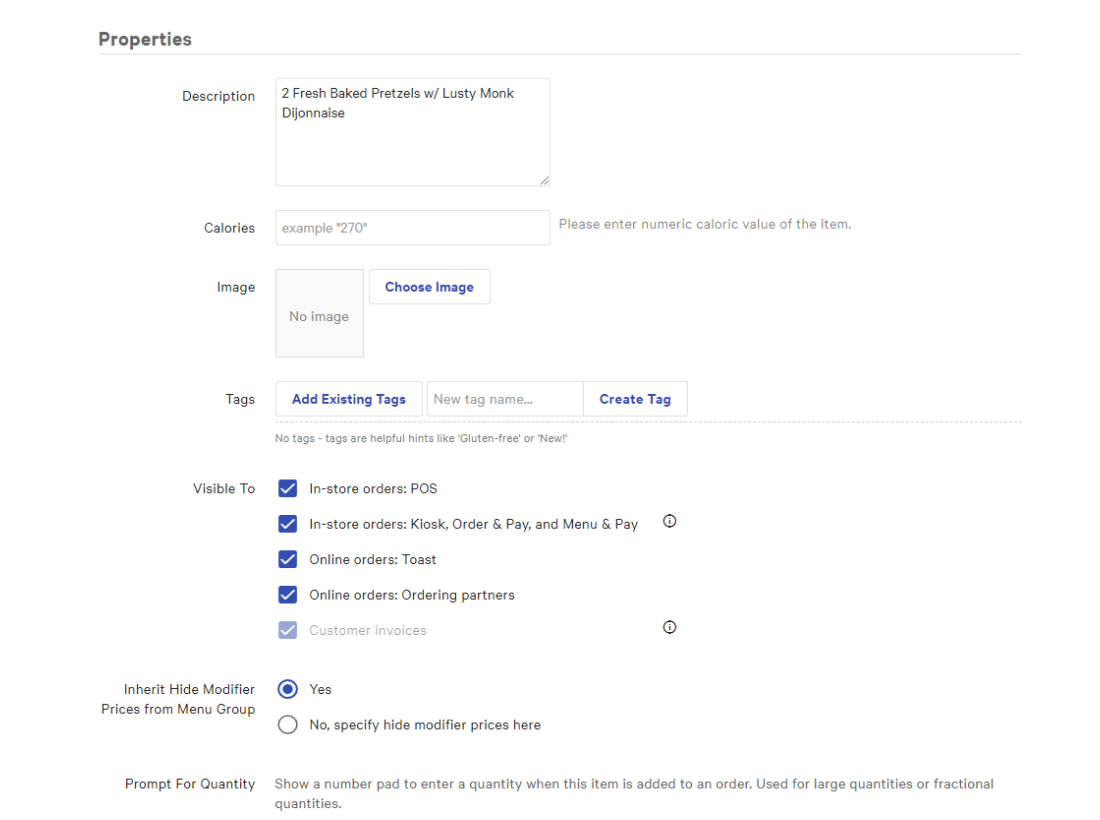
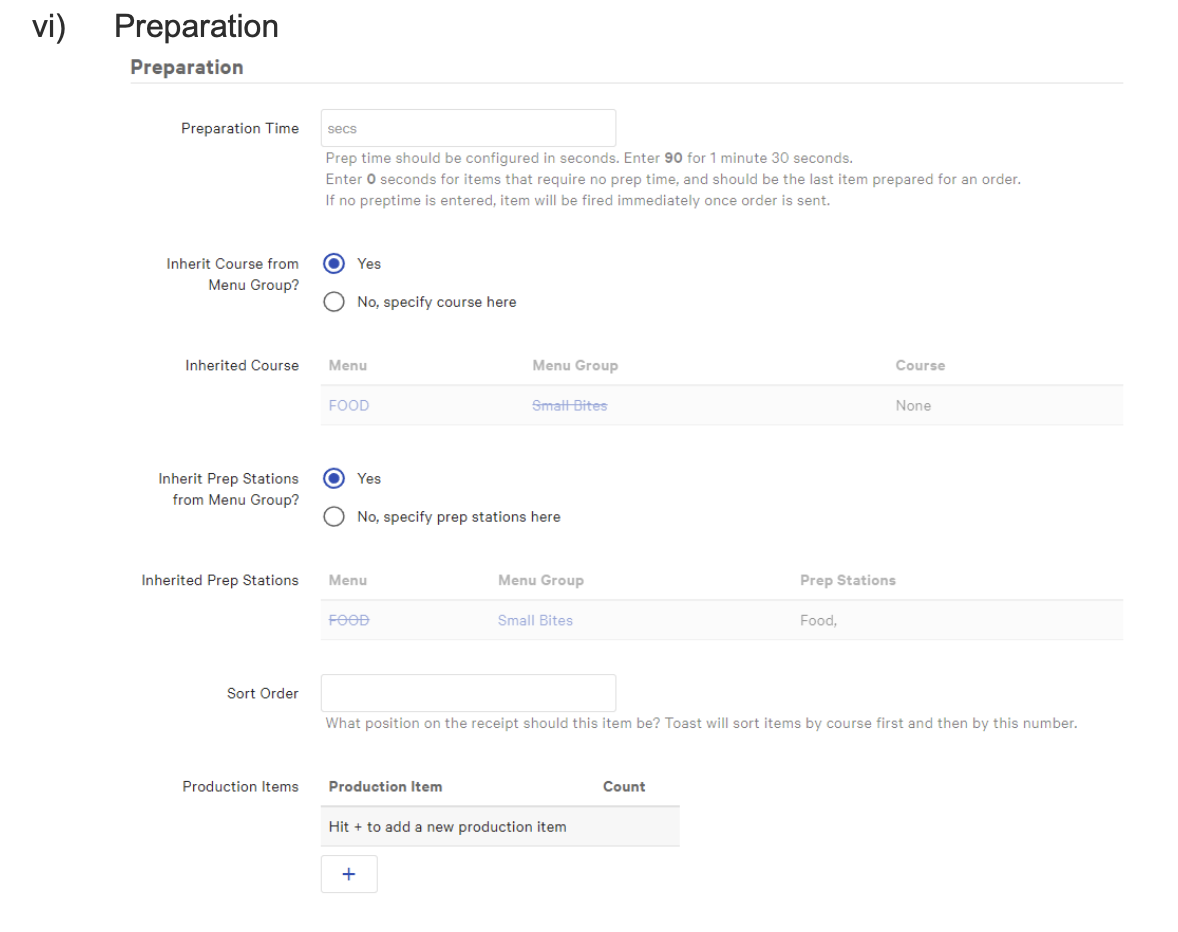
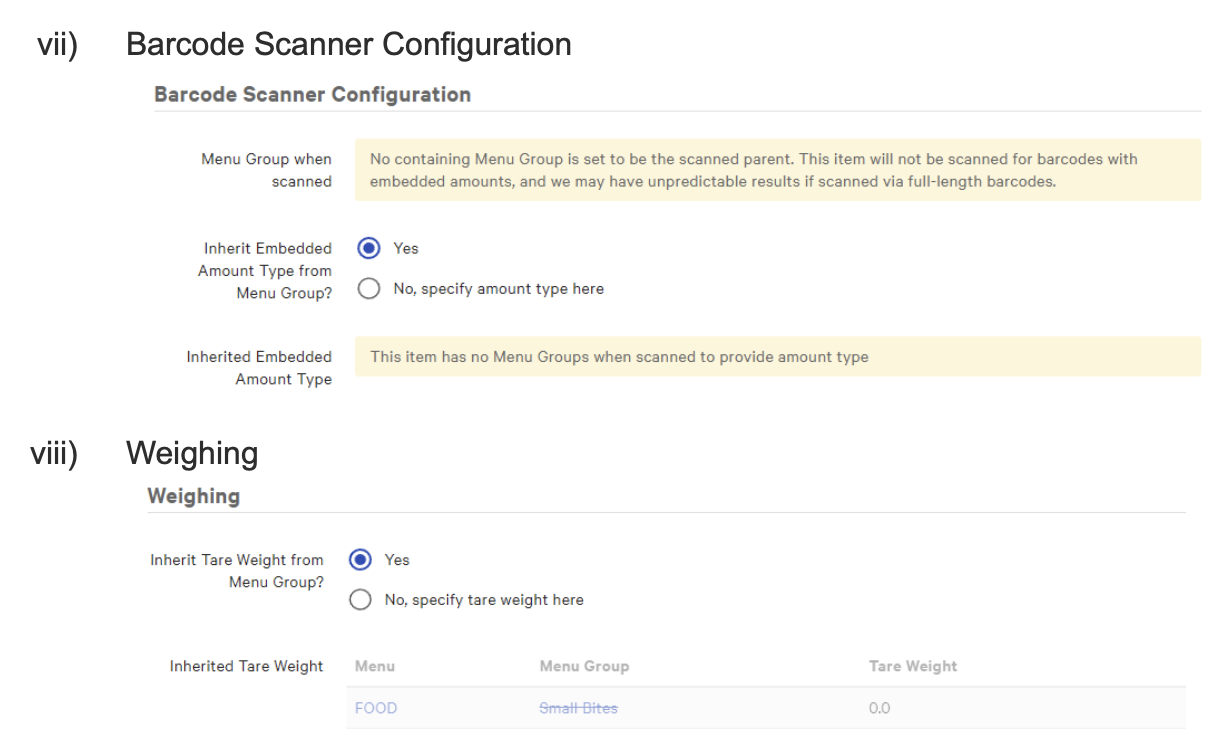
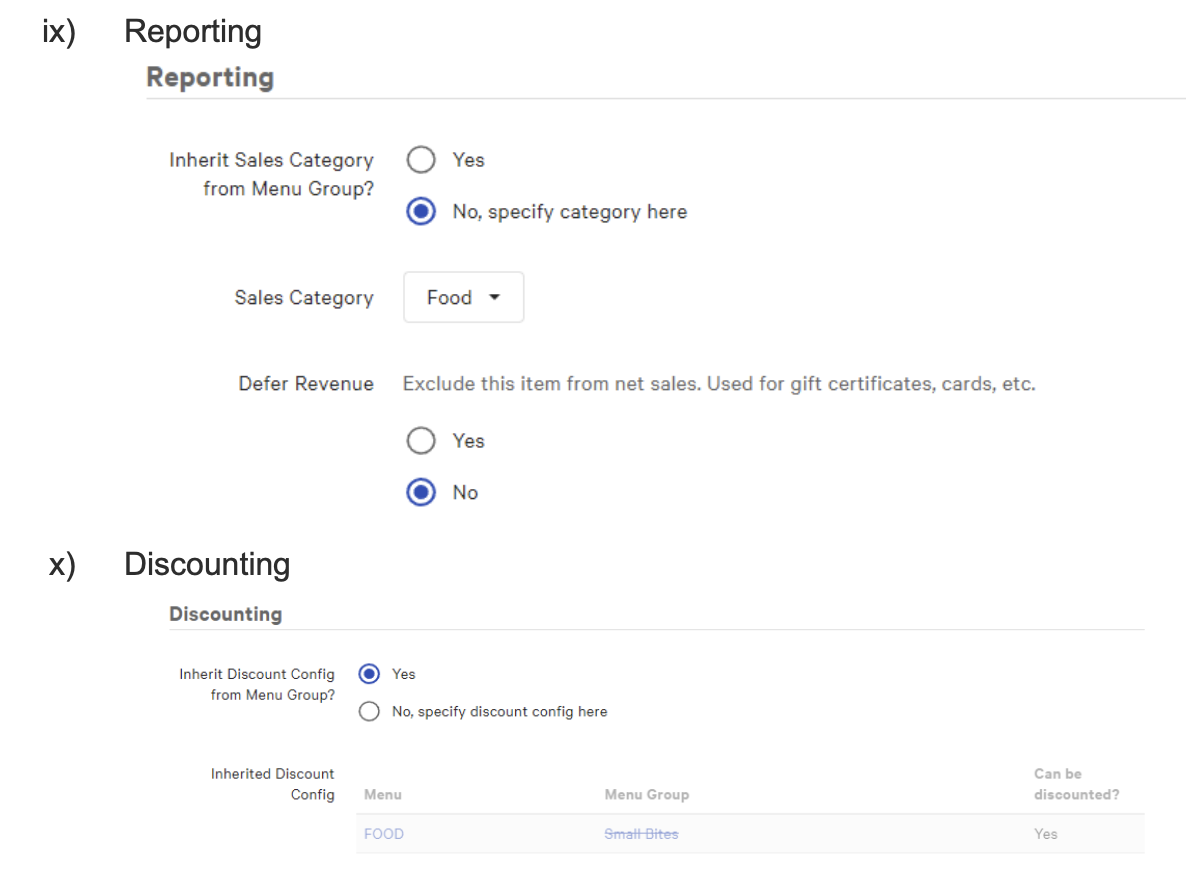
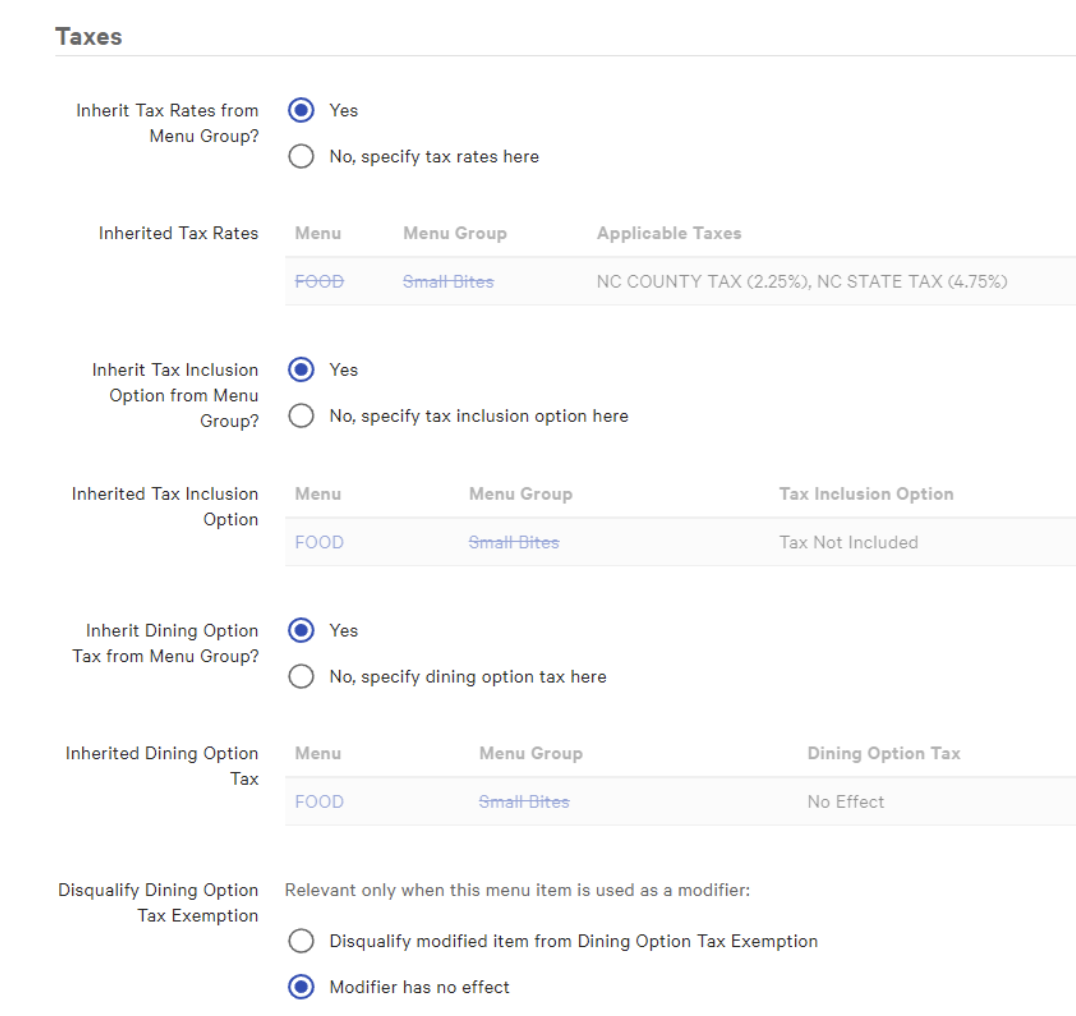
- Once adding the items you need to enter in all information into the following categories.


Leave a Reply
Want to join the discussion?Feel free to contribute!